Getting started
Go from a fresh install to a working setup — one connected channel, a live inbox, and your first automation running safely.
By the end of this guide you'll have one channel connected, messages landing in your inbox, and one automation running. That's the point where Enscale starts paying for itself.
Time needed: about 30 minutes of your attention, plus 1–24 hours of waiting for Meta to approve your first WhatsApp template. You can do everything else while you wait.
Is this the right app for your store?
Enscale is a good fit if you're nodding at most of these:
- Customers message you on WhatsApp, Instagram or Facebook and you're answering from separate apps.
- You retype the same "your order shipped" / "yes, we deliver there" replies every day.
- You're on Shopify and want order details visible while you're replying.
- You want to send WhatsApp campaigns to past customers, legitimately.
- You want reviews, and email isn't getting them.
It's not a fit if you only sell through channels Enscale doesn't touch, or if you need a full helpdesk with SLAs and ticket queues.
What's actually in the app
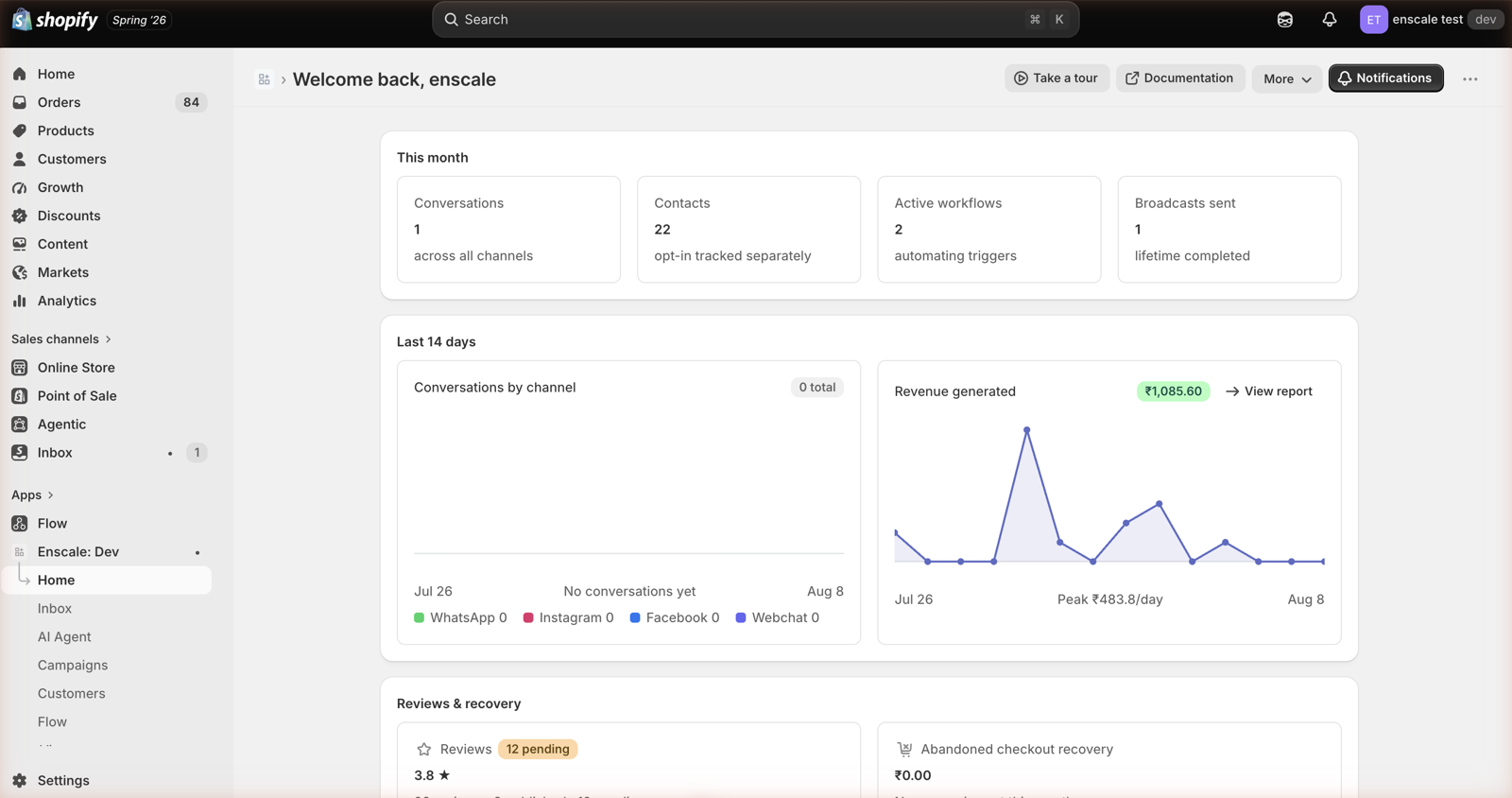
| Section | What you'd open it for |
|---|---|
| Inbox | Reading and replying to customers. |
| Workflows | Building automations — the messages that send themselves. |
| Campaigns | Sending a WhatsApp blast to opted-in customers. |
| Reviews | Collecting reviews and putting them on your product pages. |
| AI agents | Letting AI handle the repetitive questions. |
| Loyalty | Points and rewards for repeat buyers. |
| Revenue | Checking what all this actually earned you. |
Set it up
Install from the Shopify App Store
Find Enscale, hit install, and approve the permissions Shopify shows you. You'll land straight in a setup wizard.
Want to know exactly what each permission is for before you click? Shopify installation lists all of them.
Finish the setup wizard
It asks for your business basics — timezone, business hours, how you want to greet people. You can't skip it, because your automations need this to behave sensibly. Sending an "we're online now!" message at 3am is exactly what this prevents.
Takes about five minutes: First-run setup.
Connect WhatsApp first
If you plan to use automations or campaigns at all, connect WhatsApp before anything else — it's the channel every other feature assumes you have.
WhatsApp setup walks through it. Adding Instagram, Facebook and webchat later takes a few minutes each.
Decide how you'll collect opt-in
Before you send a single outbound WhatsApp message, you need a way for customers to agree to receive them — a checkout checkbox, a popup on your store, a "reply YES" keyword, or an existing list that already has consent.
This isn't a formality. Messaging people who never opted in is how WhatsApp numbers get restricted by Meta — and once that happens, your outbound messaging stops working. Enscale will refuse to send to contacts who haven't consented.
Send yourself a test message
Grab your phone and message your own store number. Check three things:
- The conversation shows up in your Enscale inbox.
- You can reply from the inbox.
- The reply actually arrives on your phone.
If all three work, your channel is connected properly. If not, Troubleshooting covers the usual causes.
Build one automation
Start with a post-purchase review request. It's short, it can't annoy anyone if you get it slightly wrong, and it teaches you the four things every other automation uses: triggers, waits, lookups and templates.
Walkthrough: Build your first workflow.
Now add the rest
With the inbox and one automation working, add campaigns, reviews, AI agents and loyalty in whatever order matters most for your store. Nothing else depends on a particular sequence.
You're live when
- A customer message reaches your inbox.
- Your reply reaches the customer.
- The right Shopify customer and their orders show up beside the conversation.
- At least one automation has run successfully.
- Whoever handles your messages knows where to find them.
Six things worth knowing on day one
- Your inbox never gets switched off. Even if you blow through a usage limit and automations pause, you can still reply to customers by hand.
- Contacts are unlimited on every plan, including Free. You're never charged for storing customers.
- Campaigns and AI agents need a paid plan. Your 7-day trial includes both, so you can try before deciding.
- Outbound WhatsApp needs opt-in. Enscale enforces this and will silently skip contacts who haven't consented — so if a campaign reaches fewer people than expected, this is usually why.
- You can only send a free-typed message within 24 hours of the customer's last message. Outside that window you need a Meta-approved template. See the 24-hour rule.
- Your usage resets on the 1st of the month, not on your Shopify billing date. These two dates will not line up, and that's expected.
Next steps
- Onboarding checklist — the full tick-list before you go live.
- Plans and limits — what your plan includes and what happens at a limit.
- WhatsApp setup — the channel to connect first.
- Troubleshooting — when something isn't working.