Inbox
Every customer conversation from every channel in one place, with their Shopify orders right beside it.
The inbox is where every customer message lands, whichever app they sent it from. WhatsApp, Instagram, Facebook, your storefront chat — all one list, with the customer's order history alongside.
Two things worth knowing up front: it's on every plan, including Free, and it never switches off. Even if you blow through a usage limit and your automations pause, you can still read and reply.
What you're looking at
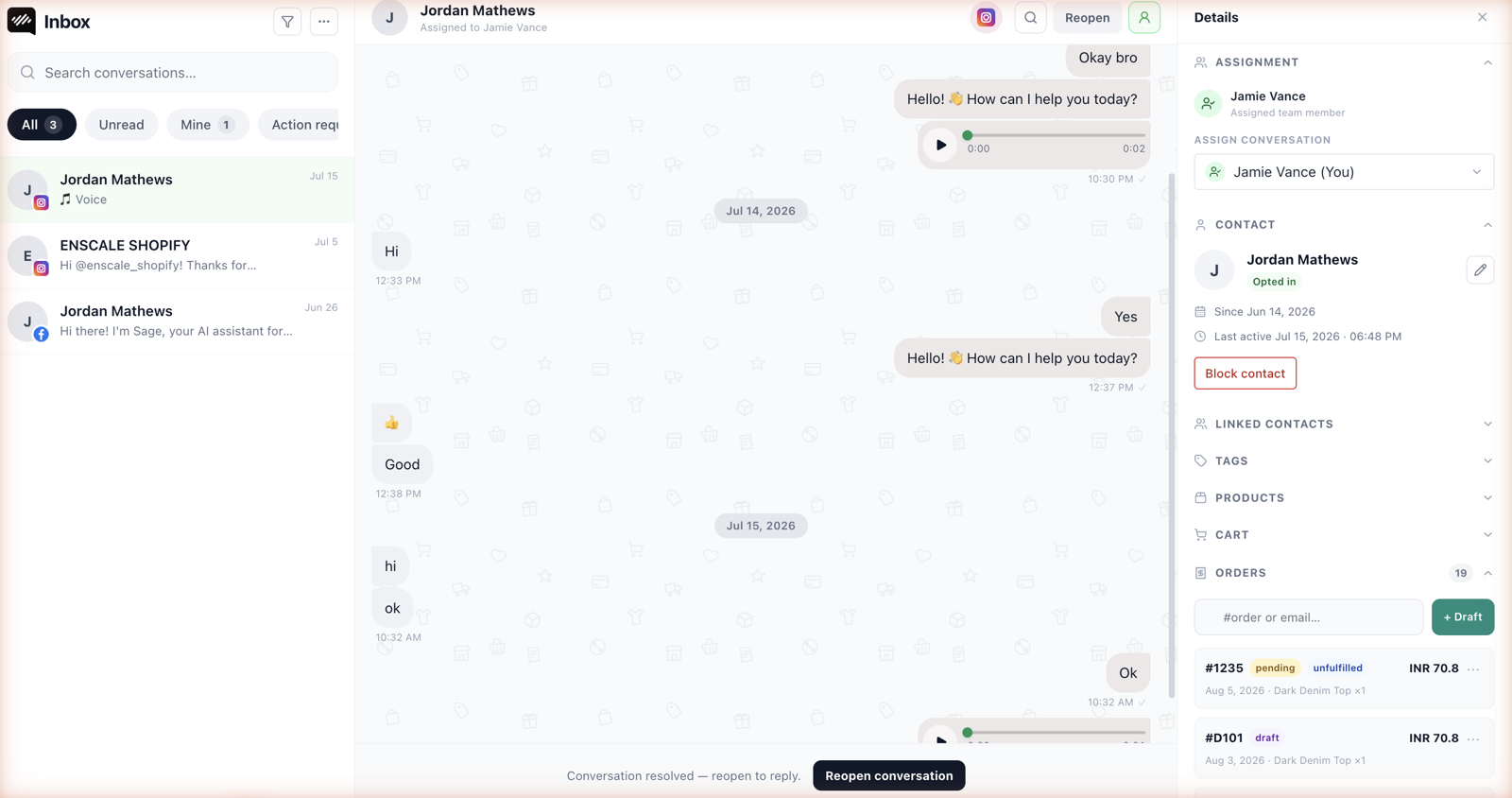
| Panel | What's in it |
|---|---|
| Left — the queue | Every conversation, with its channel, last message, whether it's unread, and who owns it. |
| Middle — the chat | The message thread and your reply box. |
| Right — the customer | Who they are, their Shopify orders, consent, tags, loyalty points. |
That right panel is the whole point. When someone messages "where's my order?", you're not asking them for an order number — it's already on screen.
Replying
Open a conversation, type, send. Enscale works out which channel to send through; you never pick.
You can send text, emoji, images, video, documents and voice notes, depending on what each channel supports.
The 24-hour rule
On WhatsApp, Instagram and Facebook you can only send a free-typed reply within 24 hours of the customer's last message. After that, Meta won't deliver it and you have to use a pre-approved template instead.
This is Meta's rule, not ours. The reply box tells you when a conversation's window has closed and offers your templates instead. See Message templates.
Webchat has no such limit — but a webchat visitor who closes the tab is unreachable anyway, which is why capturing a phone number in chat is worth doing.
Conversation states
| Status | What it means |
|---|---|
| Open | Active, nobody's claimed it. |
| Assigned | A specific person owns it. |
| AI handling | An AI agent is answering right now. |
| Resolved | Closed. |
A resolved conversation reopens automatically if the customer messages again — so closing one isn't a decision you can get wrong.
How conversations close
| Closed because | When | Costs you? |
|---|---|---|
| Someone closed it | A person marked it resolved | No |
| AI resolved it | An AI agent solved it and closed it | Yes — this is the billable AI outcome |
| It went quiet | Auto-closed after silence | No, never |
Auto-close defaults to 24 hours of silence in either direction. You can change it to anything from 1 hour to 30 days in Settings → General, or switch it off entirely so conversations only close when a person or the AI closes them.
Messages that send themselves
Three automatic replies you can set up in Settings → General:
| Message | Sends when |
|---|---|
| Welcome message | Someone contacts you for the very first time |
| Out-of-hours message | A conversation starts outside your business hours |
| Idle warning | Optionally, before a quiet conversation gets closed |
The out-of-hours one needs business hours configured — see First-run setup. It's the difference between a customer thinking you're ignoring them at 11pm and knowing you open at 9.
Who handles what
Assign a conversation to a teammate to make ownership obvious, or to an AI agent to let it take a first pass. Automations can assign for you with the Assign to Agent step — routing high-value customers to a senior person, for instance.
The inbox shows who's currently online, so you're not assigning to someone who logged off an hour ago.
Small teams often skip assignment entirely and work a shared queue. That's fine up to about four people, after which you'll want it.
When AI hands over
If you've got AI agents running, one handles eligible conversations and passes them to a human when it should — when it's unsure, when the customer asks for a person, when money or account changes come up, or when it's failed too many times.
The handed-over conversation arrives with the entire AI exchange visible, so you pick up knowing what's already been said and the customer never repeats themselves.
Handover also fires the AI Handed to Human trigger, which you can use to alert a specific person or team. See AI handover.
Finding things
Filter the queue by channel, status, assignment and tag. Combine them to build the view your team actually works from — "unassigned WhatsApp conversations tagged urgent" is one shift's work in a single filter.
Two places to work
You get the same inbox in two places, showing identical data in real time:
- Inside Shopify admin — convenient when you're already there doing other things.
- The team inbox — a standalone app for people who spend all day in it, and for staff who shouldn't have Shopify admin access at all.
Most stores end up using both: the owner in Shopify, the support team in the standalone app.
What it costs you
Each 24-hour window of messaging with one customer on one channel counts as one conversation against your plan — however many messages go back and forth inside it. See Plans and limits.
If you run out of conversations, you get a 24-hour grace period. After that the inbox becomes reply-read-only: full access to history, contacts and settings, but you can't send until you upgrade or the month resets on the 1st.
You never lose access to your customer data because of a usage limit.
Next steps
- Contacts — customer records and consent.
- Team inbox — the standalone app for your agents.
- Team and roles — getting people in.
- Segments — turning contacts into audiences.