Team inbox
A standalone inbox app for people who answer messages all day — no Shopify account needed, works on a phone.
The team inbox is a separate app for the people who work in your inbox all day. Same conversations as the inbox inside Shopify admin, live and in sync — but without Shopify wrapped around it, and without needing a Shopify account at all.
Why it exists
Your support staff don't need access to your store. Agents sign in with their own Enscale login. No Shopify staff seat, no view of your orders, products, payouts or settings.
For most stores that's the whole reason. If you use freelancers, VAs or an agency for support, this is the difference between handing over the keys to your business and handing over an inbox — and you're not paying Shopify for staff seats either.
It's built for speed. Keyboard-driven replies, fast switching between conversations, a board view for triage, and a layout that works properly on a phone.
It doesn't fight for the tab. You can be working in Shopify admin while your team works the queue, without anyone losing their place.
Getting your team in
Invite them as Agents
In Settings → Team, add each person with the Agent role. Unlimited seats on every paid plan.
They set their own password
They get an email, follow the link, and choose a password. Forgotten passwords are self-service, so you're never resetting passwords for people.
They sign in
First sign-in runs a short guided tour of the interface.
See Team and roles for what each role can and can't do.
The queue
The left panel, grouped by recency — Today, Yesterday, This week, then older.
Filter by unread, mine, unassigned, channel or tag — and combine them. "Unassigned WhatsApp, tagged urgent" is a shift's work in one view.
Three row actions worth knowing
| Action | What it does |
|---|---|
| Pin | Floats it to the top of the list |
| Mark unread | Puts it back in the unread pile |
| Block | Stops that contact's messages arriving, and blocks sending |
Pin for the thread you're actively working, or an escalation you can't afford to lose in the scroll.
Mark as unread is the underrated one. It's how an agent hands a conversation to the next shift without assigning it to a specific person — leave it unread and it goes back in the pile for whoever's on next.
Replying
| Control | What it does |
|---|---|
| Attach | Images, video, documents, with a caption |
| Emoji | Emoji picker |
| Voice message | Record and send audio |
| Quick replies | Your saved answers — type / |
| Templates | Approved WhatsApp templates, for when the 24-hour window has closed |
| Reply | Quote a specific message |
| Search | Find something within this conversation |
Quick replies — the biggest speed win
Type / in the reply box and start typing. Arrow keys move through the matches, Enter inserts it.
Rule of thumb: any answer your team gives more than twice a day belongs in quick replies. Shipping times, return instructions, sizing guidance, "do you deliver to X". It's the single biggest difference between a fast inbox and a slow one.
Quick replies vs templates, since people mix them up:
- Quick replies are your own saved text. Instant, free, usable inside the 24-hour window.
- Templates are approved by Meta and required outside the window. See Message templates.
Other things in the thread
- Delivery states — every outbound message shows Sent, Delivered, Read or Failed. Failures appear in the thread rather than disappearing silently, so an agent knows to try something else.
- Internal notes — a staff-only field per conversation for what was promised or escalated. Never sent to the customer, saves as you type.
- "AI is typing" — when an AI agent is composing, agents see it, so nobody jumps in and sends a duplicate reply.
The customer sidebar
The right panel is why answering is fast here — everything about the customer without leaving the conversation.
| Section | What's there |
|---|---|
| Contact | Name, phone, email, channels, consent — editable inline |
| Assignment | Who owns it; reassign to a person or an AI agent |
| Tags | Add, remove, create |
| Orders | Their Shopify order history |
| Cart | What's in their cart right now |
| Products | What they've been looking at |
| Discounts | Existing codes, and generate a new one |
| Loyalty | Points balance and history |
| Linked contacts | Other records for the same person |
| Activity | The conversation timeline |
Linked contacts
The same person often exists twice — they WhatsApped you from a phone number and DMed you on Instagram under a handle, and neither record knows about the other.
Find related contacts surfaces likely matches so you can link them; Unlink undoes a wrong guess. Once linked, an agent sees the whole relationship rather than one channel's slice of it.
Generating a discount mid-conversation
You can create a discount code straight from the sidebar without opening Shopify. Genuinely useful for service recovery — a customer complains about a late delivery and gets ₹200 off their next order before they've finished typing.
There's a random code generator, so nobody has to invent names.
Board view
A kanban board of your conversations, grouped by status: Unassigned, Assigned, AI handling, Resolved.
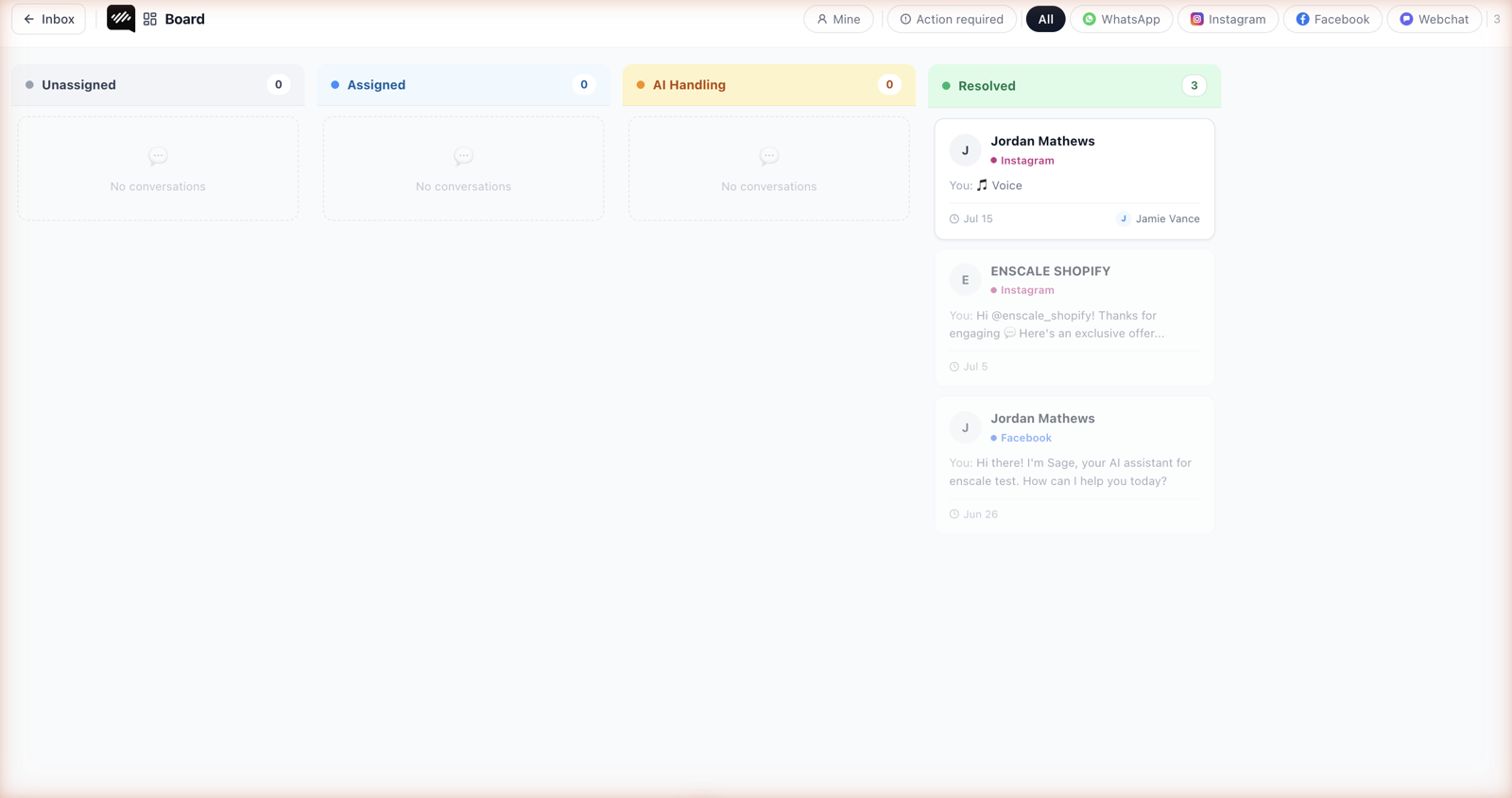
Drag a conversation between columns to change its state — drag from Unassigned to Assigned to claim it, drag to Resolved to close it.
The board is for triage and supervision, not day-to-day answering. It answers "how much is sitting unowned right now?" at a glance, which the list can't. Most agents work from the list; whoever's running the shift tends to live on the board.
It updates live
New messages, assignments, status changes and AI handovers all arrive without refreshing. Two agents on the same queue see each other's actions as they happen, so nobody double-replies.
If your network blocks the live connection, the app falls back to polling automatically — updates get slightly slower rather than the inbox breaking.
Browser notifications alert agents when the tab isn't focused.
Phone notifications
Agents can turn on push notifications in Settings → Notifications to get alerted on their device even with the app closed. Useful for evening and weekend cover.
The browser asks permission the first time. If an agent declines, the browser remembers and the app can't ask again — they'll have to re-allow notifications in their browser's site settings. Worth telling your team before they click.
Push isn't available on every browser and platform combination; the settings page shows whether it's supported.
On a phone
The team inbox works properly on mobile, which is what makes out-of-hours cover realistic.
- Pull down to refresh the conversation list.
- Swipe back from a conversation to the queue.
- Panels collapse to one at a time, with the customer sidebar behind the info button.
Voice notes are noticeably better on mobile — an agent can reply to a WhatsApp voice note with one of their own, which customers respond well to.
Personal settings
Settings → Appearance has Light, Dark and System themes, set per person rather than for the whole team. Evening-shift agents generally want dark.
Agents can set a display name in Settings → Profile, which shows on internal activity. "Priya (evening shift)" is more useful to the team than an email address.
What happens at a usage limit
The inbox never fully stops.
If your conversation allowance runs out, a 24-hour grace period starts. After that it becomes reply-read-only — agents keep full access to history, contacts and context, but can't send until you upgrade or the month resets on the 1st.
Running out of workflow runs doesn't affect the inbox at all. See Plans and limits.
Common questions
Next steps
- Inbox — how conversations work.
- Team and roles — inviting agents.
- Contacts — what fills the sidebar.
- AI handover — conversations arriving from AI.