Workflows
Build the messages that send themselves — order updates, cart recovery, review requests — by dragging steps onto a canvas.
A workflow is a message that sends itself. "When an order is delivered, wait two days, then ask for a review." You build it by dragging steps onto a canvas — no code.
This is where most of the value in Enscale is. The inbox saves you from switching apps; workflows save you from typing at all.
The two parts of every workflow
Every workflow is one thing that starts it, followed by the steps that happen next.
- The trigger is what kicks it off — an order is placed, someone comments on your post, a customer messages you.
- The steps are what happens after — send a message, wait two days, check something, hand the conversation to a person.
Why there's no ready-made "abandoned cart" trigger
Enscale gives you the raw events from Shopify rather than pre-packaged recipes. So there's no single "abandoned checkout" trigger — you build it from Checkout Created, plus a check for whether they went on to buy.
It's a little more work the first time. The payoff is that you decide what counts as abandoned for your store — 30 minutes or 6 hours — rather than living with someone else's guess. And the flow templates already have this built for you if you'd rather not think about it.
Build your first workflow
A post-purchase review request. It's short, it can't upset anyone if you get it slightly wrong, and it teaches you triggers, waits, lookups and templates in one go.
Create it
Go to Workflows and create a new one. You land on an empty canvas.
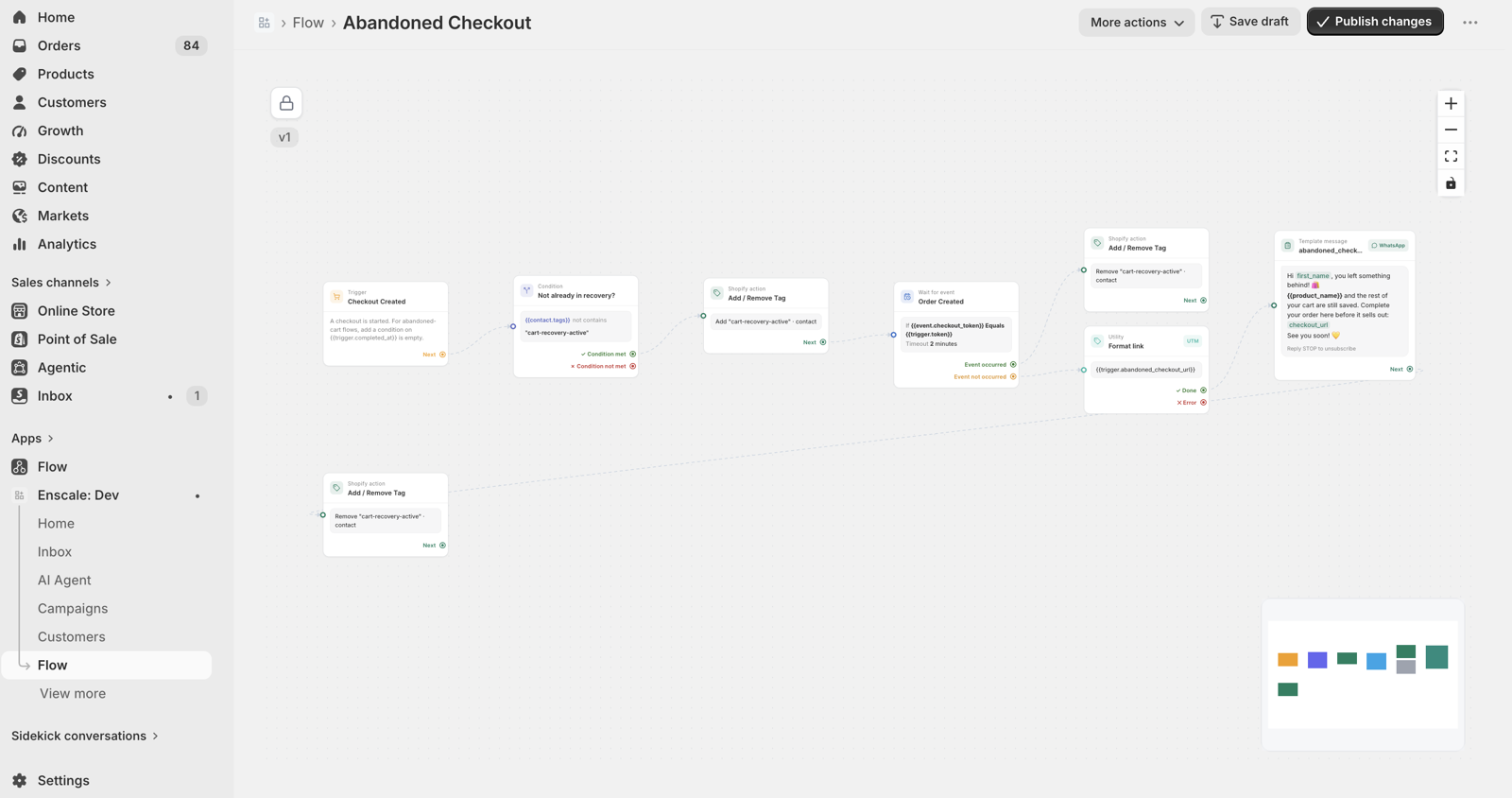
Choose what starts it
Pick Fulfillment Updated, then add a Condition step checking that the shipment status is delivered.
Why two steps for one idea? Shopify doesn't have a dedicated "delivered" event — it sends a general fulfilment update, and you narrow it down. This pattern comes up a lot.
Wait a couple of days
Add a Wait / Delay step set to 2 days.
Asking for a review the moment the parcel lands rarely works — they haven't used the thing yet. Two days is enough to have opened it, not so long they've forgotten you.
Build the review link
Add a Fetch review link step. This creates a link tied to this specific customer and product, which is what makes the resulting review show as a verified purchase on your storefront.
Verified reviews convert better than anonymous ones, so this step is worth the ten seconds.
Send the message
Add a Template Message step with your approved review-request template, and drop the review link into it.
It has to be a template rather than a normal message, because the customer hasn't messaged you — no 24-hour window is open. See the 24-hour rule.
Preview it, then publish
Use Preview to walk through the flow with sample data and see the actual message that would go out.
Then set it Active. It's now running.
Draft, Active, Inactive
| State | What it does |
|---|---|
| Draft | Saved but never published. Doesn't run. |
| Active | Live and running against real events. |
| Inactive | Was published, currently paused. Doesn't run. |
Deactivating a workflow stops new runs starting. Anything already in flight — a flow sitting in a two-day wait — carries on to the end. So switching something off doesn't strand customers mid-sequence.
What counts as one run
One run is one complete execution, however many steps are in it. A twelve-step cart recovery sequence and a two-step order notification each count as 1.
- One cart recovery for one shopper = 1 run
- One review request for one order = 1 run
- One comment-to-DM reply for one comment = 1 run
Your monthly allowance depends on your plan — see Plans and limits.
Safety rules you don't have to build
These run on every workflow automatically. You never wire them up yourself, and you can't accidentally skip them:
- Consent is checked before any WhatsApp message. Contacts who haven't opted in are skipped.
- Unsubscribes are respected. Someone who opted out never receives an automated message.
- The 24-hour rule is enforced. A free-typed message outside the window is blocked in the builder rather than failing silently at Meta.
- Your plan limit is checked before a run starts.
- Duplicate events are collapsed. Shopify sometimes fires two events describing the same thing — a checkout that sends both a create and an update. Enscale merges them, so your customer doesn't get messaged twice.
That last one saves real embarrassment and is worth knowing about.
When automations pause
Run out of your monthly workflow allowance and you're warned at 80%, then again at 100%. Hitting 100% pauses automations immediately — there's no grace period. Workflow runs and campaign sending stop until you upgrade or the month resets on the 1st. Stopping right at the cap means nothing keeps running, and nothing keeps costing, past your limit.
If you've opted into workflow overage, runs carry on past the cap and are billed per run instead of pausing. See Overage.
Your inbox is never affected. Manual replies, history and contacts all stay fully available. See Plans and limits.
Common questions
Next steps
- Flow templates — ready-made flows to start from.
- What can start an automation — every trigger.
- What an automation can do — every step.
- Instagram comment automation — the comment-to-DM pattern.